Introduction
This page introduces the basic use of Google Docs.
What is Google Docs?
Google Docs is a service that allows you to create and edit documents online. Since documents are saved online on Google Drive, they can be edited collaboratively by all users with access to the file. For more details on Google Drive, please refer to the “Google Drive” page.
Using Google Docs with a university account
At the University of Tokyo, Google’s “Google Workspace” service is provided as part of the “ECCS Cloud Email”. Since Google Docs is included in this service, members of the university can use Google Docs with their ECCS Cloud Email accounts.
About file formats
Though Google Docs uses its own proprietary file format, Google Docs can be converted into Microsoft Word format, and uploaded Microsoft Office format files can be edited on Google services.
However, please note that compatibility is not perfect. Viewing or editing a Microsoft Word file in Google Docs may result in layout distortions or the loss of information related to unsupported features.
How to use
This page explains how to use Google Docs on a web browser on a computer.
For information on using Google Docs on smartphones and tablets, please refer to the “About Google Docs apps for smartphones and tablets” section.
Creating a document
You can create documents using Google Docs on Google Drive. Please access Google Drive and refer to the “How to create files” page to create a document.
Please note that if you are not signed in to Google when accessing Google Drive, you will be prompted to sign in. Please refer to the “Steps to Start Using Your ECCS Cloud Email” section on the ECCS Cloud Email page to sign in.
Editing a document
This section introduces useful features for editing with Google Docs.
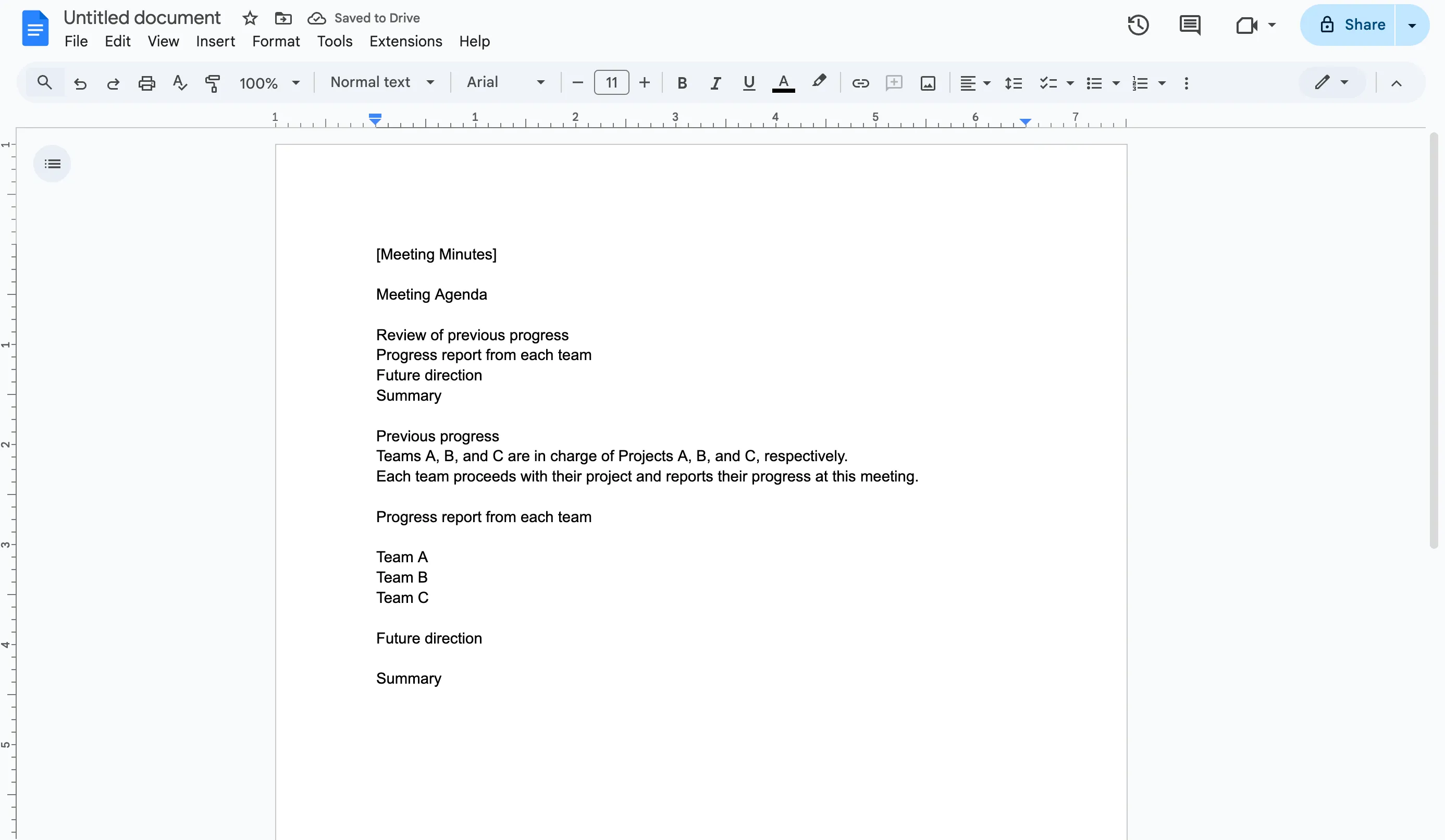
You can write in Google Docs similarly to how you would in document creation software like Microsoft Word.
Setting headings
By setting headings, you can unify their appearance and structure your document hierarchically.
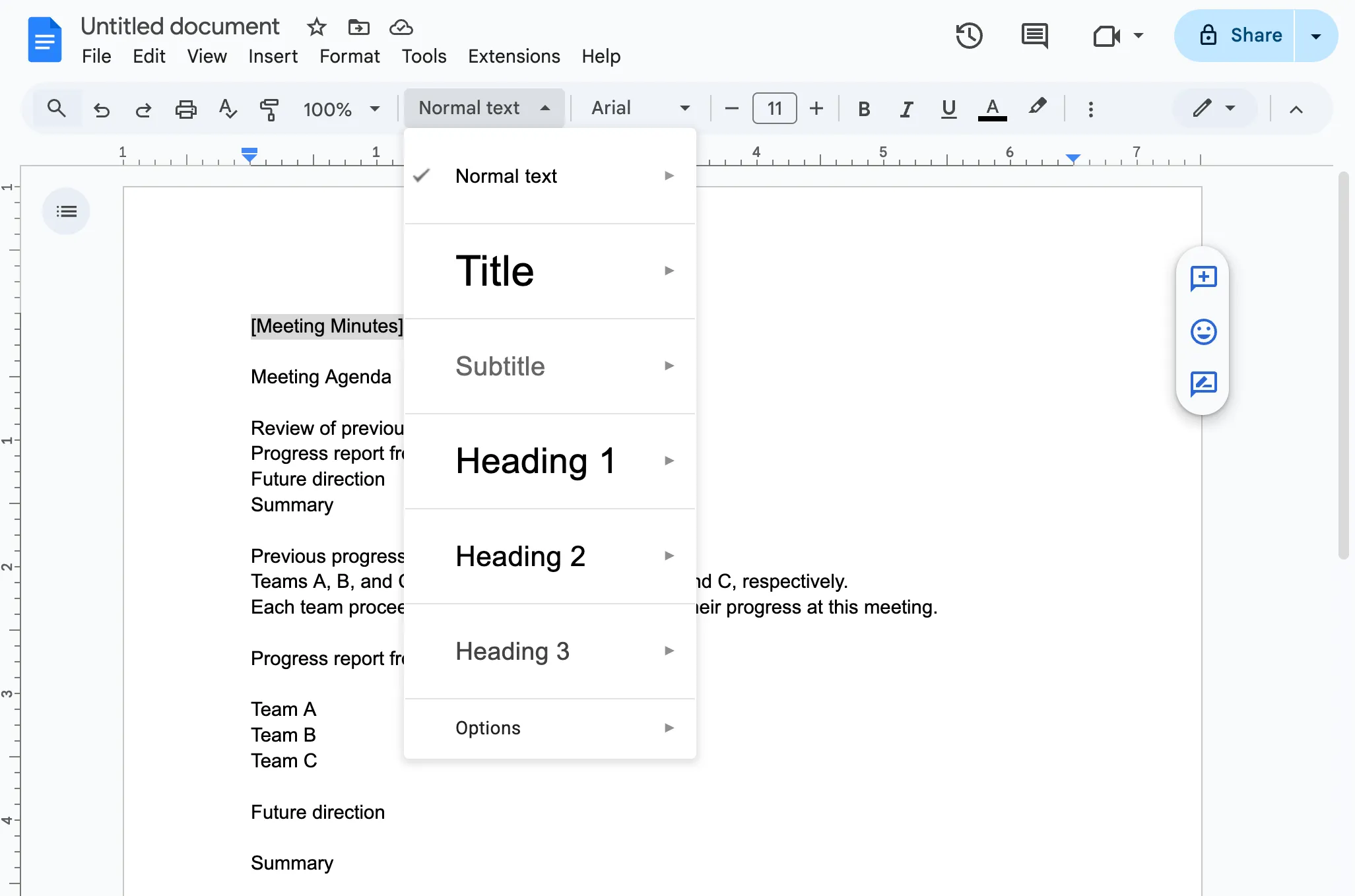
Select the text you want to turn into a heading and click on the “Normal text” menu.
A list of options like the following will appear, so choose the appropriate heading level to set it.
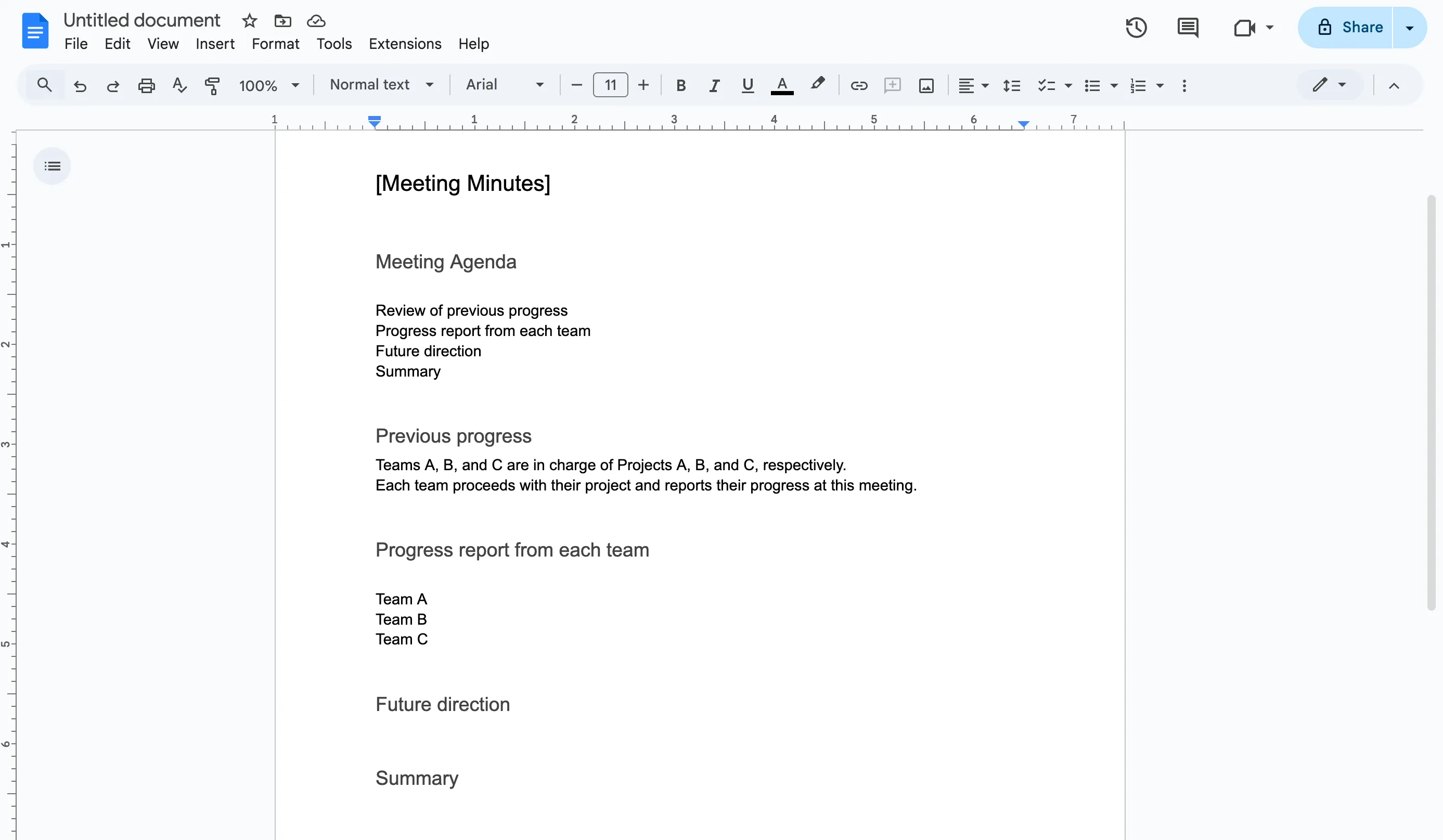
In the example above, “[Meeting Minutes]” is set to “Heading 2”, while “Meeting Agenda”, “Previous progress”, “Progress report from each team”, “Future direction”, and “Summary” are all set to “Heading 3”.
You can also set headings using the shortcut keys “Ctrl + Alt + (1-6)” on Windows, or “Cmd + option + (1-6)” on Mac.
Numbered lists
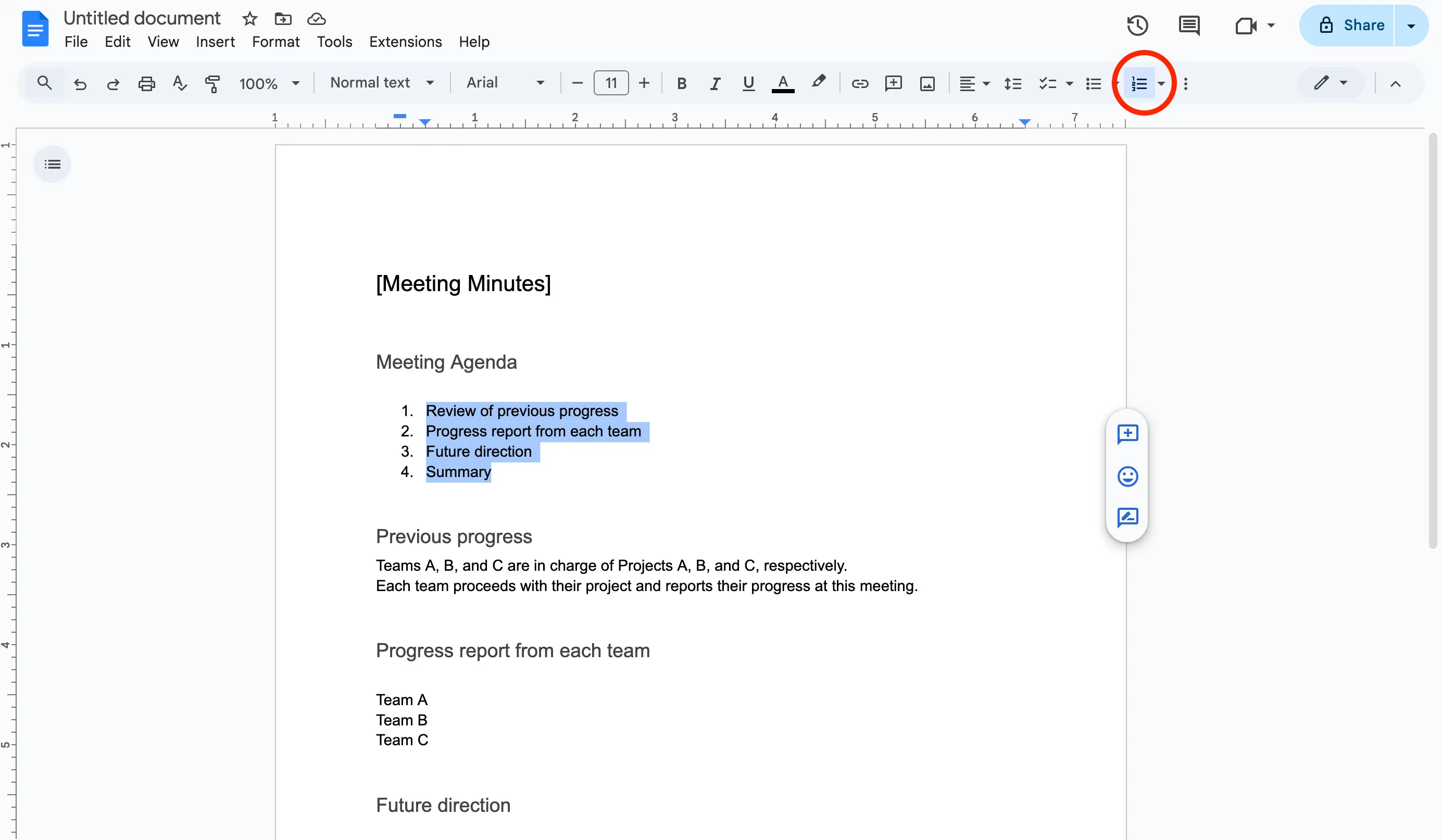
Select the text you want to number, and select the “Numbered list” icon on the toolbar.
Alternatively, you can set a “Numbered list” using the shortcut keys “Ctrl + Shift + 7” on Windows, or “Cmd + Shift + 7” on Mac.
Bulleted lists
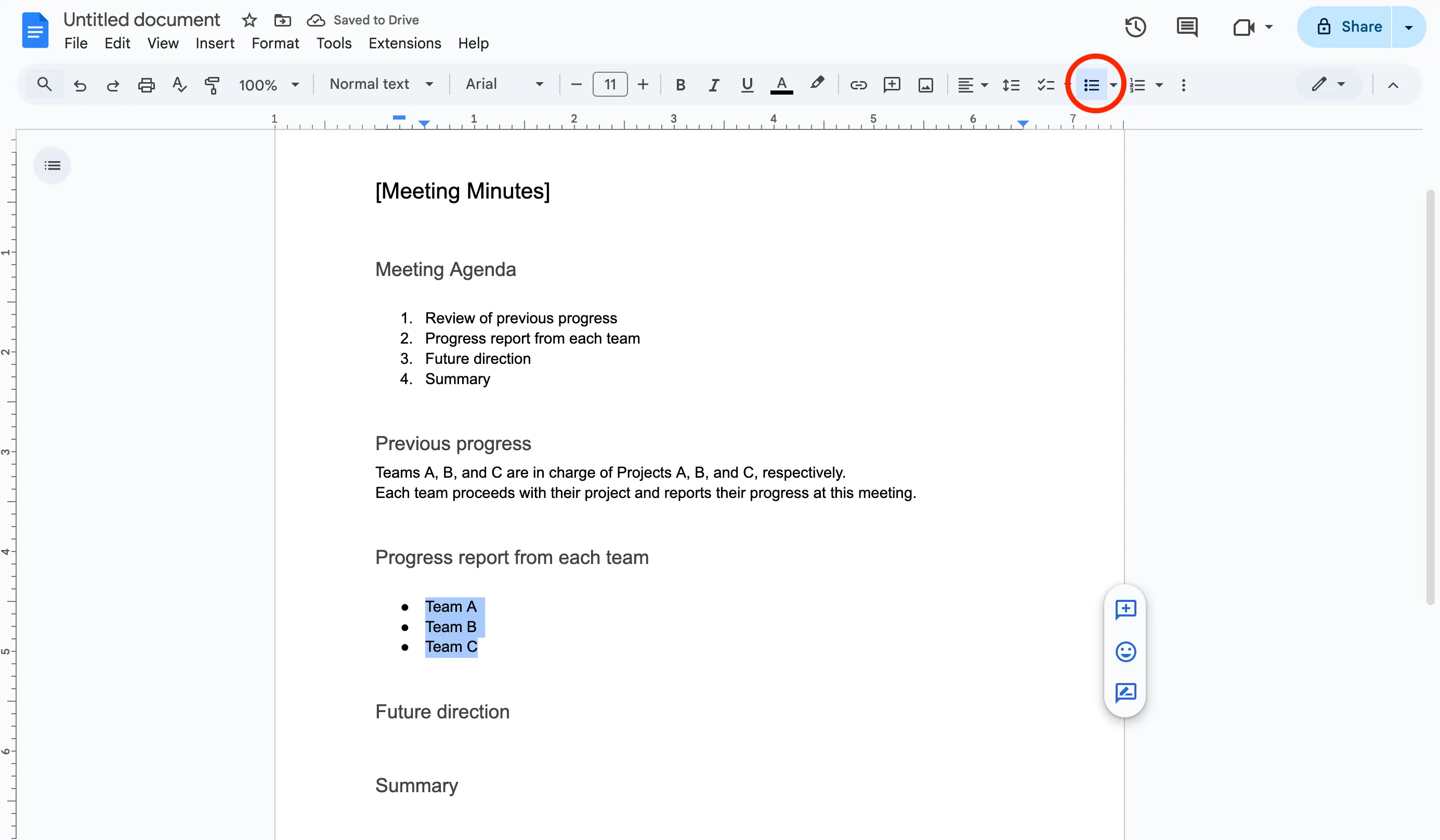
Select the text you want to write in bullet points, and select the “Bulleted list” icon on the toolbar.
Alternatively, you can set a “Bulleted list” using the shortcut keys “Ctrl + Shift + 8” on Windows, or “Cmd + Shift + 8” on Mac.
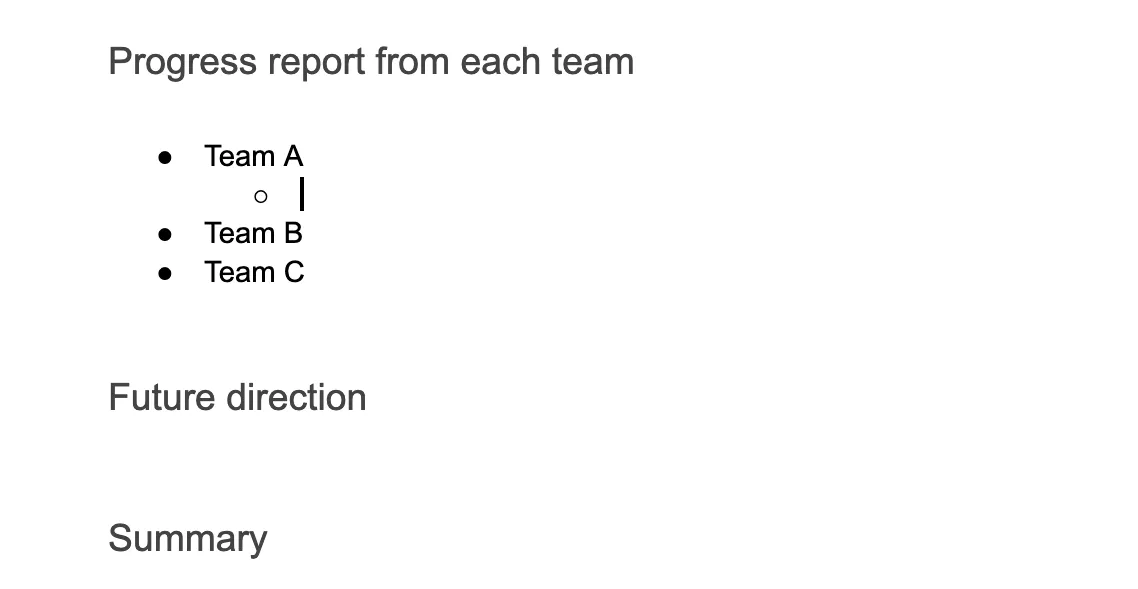
To add a bullet point at a deeper hierarchical level, press the Enter key to add a new bullet, then press the Tab key.
To return to a shallower hierarchical level, press the Shift + Tab keys.
About collaborative editing of documents
By sharing a document created in Google Docs, you can collaboratively edit it with other users.
Directly editing shared files on Google Drive saves you the trouble of downloading, editing, and re-uploading them, allowing you to share and edit materials with high productivity.
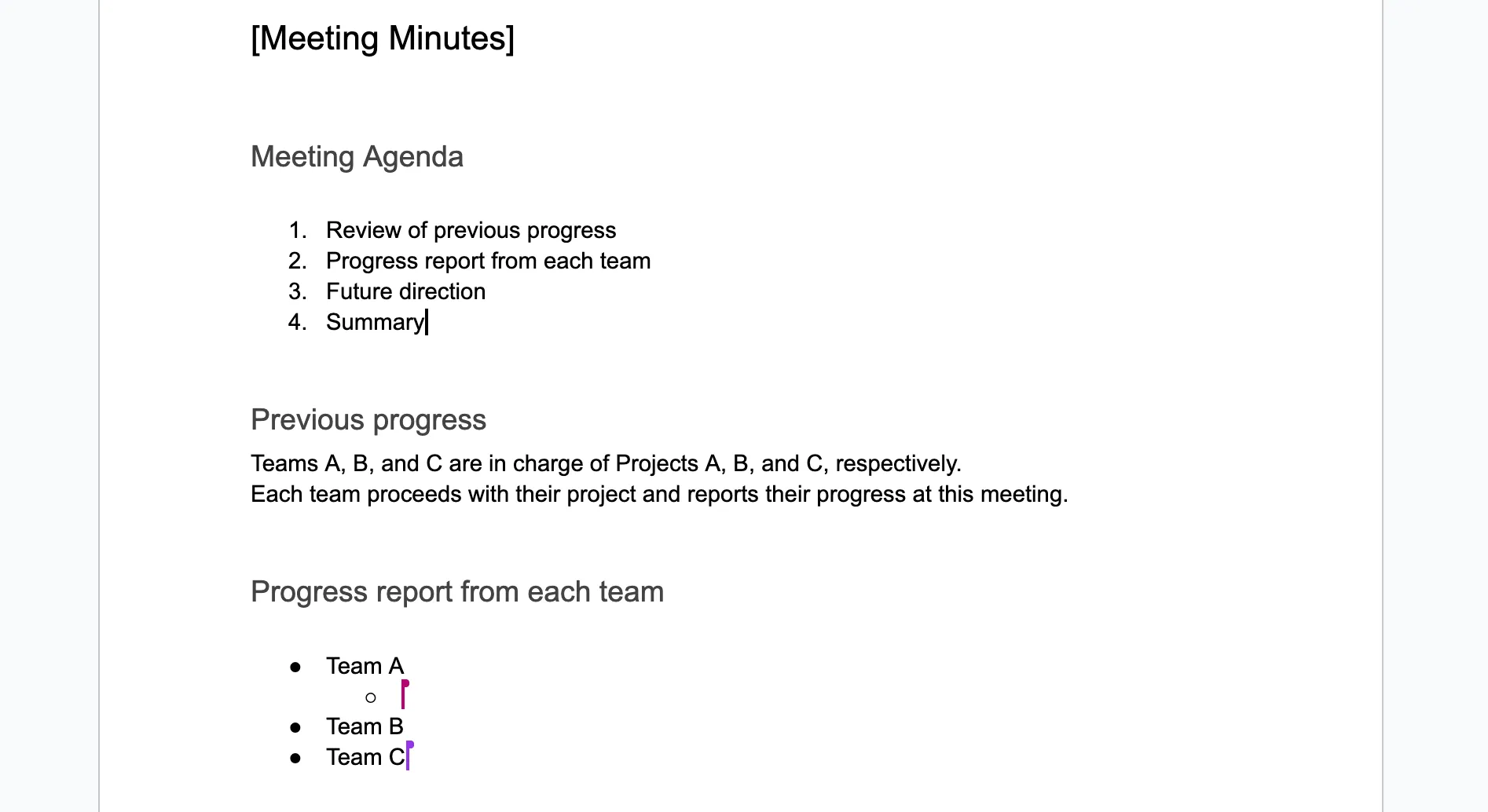
Furthermore, since multiple people can edit a single file at the same time, you can also use it to collaboratively take meeting minutes. When co-editing a document, each person’s cursor is displayed in a different color, so you can see who is editing which part. You can also assign different access levels (e.g. Editor, Viewer) to each user you share the document with.
Steps for sharing documents
There are two ways to share documents: “sharing with specific individuals” and “sharing with unspecified groups of people”. Clicking the “Share” button in the upper right of the editing screen opens the same settings screen as the sharing procedure in Google Drive (in Japanese). Please configure your sharing settings by following the instructions in “Settings procedure for sharing with specific individuals (in Japanese)” or “Settings procedure for sharing with unspecified groups of people (in Japanese)”.
Others
About Google Docs apps for smartphones and tablets
Google Docs is available as an app for smartphones and tablets, allowing you to view, create, and edit documents on your devices (viewing is also possible on a web browser). For detailed usage instructions, please refer to the Google Docs Help page.